Inventory drift is the most underdiagnosed operational problem in Shopify warehouses. Unlike a stockout — which is visible and immediate — drift is invisible. It accumulates slowly, across hundreds of small unrecorded movements, until the gap between Shopify and reality is large enough to cause real problems: oversold orders, phantom stockouts, and demand forecasts built on numbers that do not reflect what is actually on your shelves.
What Inventory Drift Actually Is
Drift is not a single event. It is the compound effect of many small discrepancies, each individually minor, accumulating over weeks or months.
A return arrives and gets checked but not restocked in Shopify — minus one unit of accuracy. A picker grabs the wrong SKU and the error is corrected physically but not in Shopify — minus one unit. A delivery arrives 3 units short and the receiver adjusts Shopify for the PO quantity rather than the actual received quantity — minus three units. An app sync runs on stale data and overwrites a correct count — variable.
None of these individual events feels significant. Collectively, across a warehouse processing 100 orders per day with returns, deliveries, and a team of five pickers, they can create a gap of hundreds of units within a month.
The Five Root Causes of Inventory Drift
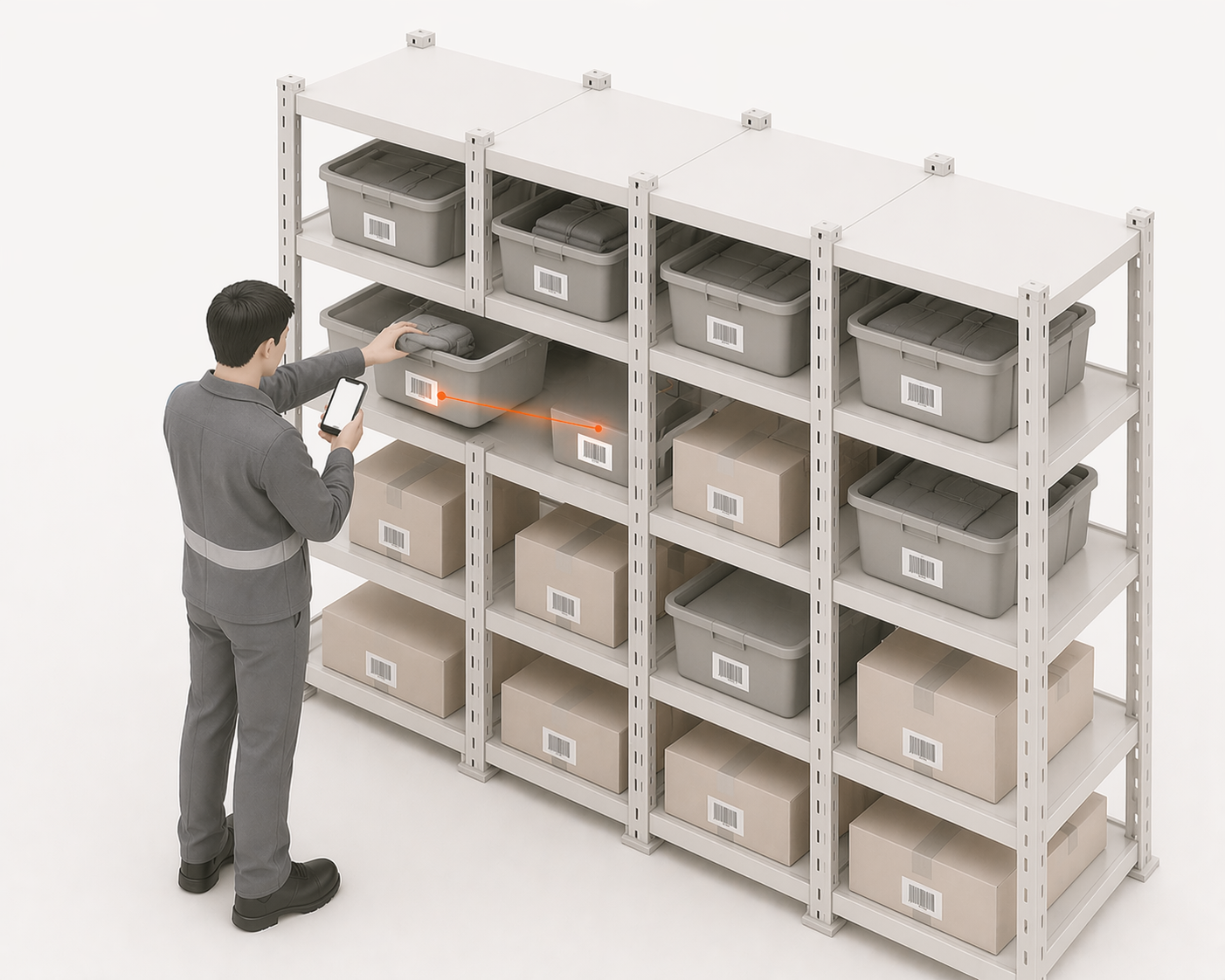
1. Returns Processed Without a Shopify Restock
This is the single largest source of drift for most merchants. A customer return arrives, gets inspected, is deemed sellable, and gets put back on the shelf — but the Shopify restock step is skipped, forgotten, or deferred. Shopify still shows that unit as sold. Over 50 returns a month, that is 50 units of invisible stock.
Fix: Make the Shopify restock step mandatory before physical put-away. The item does not go back to the shelf until it has been restocked in Shopify. Build this into your returns SOP as a non-negotiable step.
2. Pick Errors Not Corrected in Shopify
When a picker takes the wrong item — picks SKU A instead of SKU B — two things need to happen: the physical correction and the Shopify inventory correction. In practice, the physical item usually gets put back in the right location, but the Shopify adjustment often does not happen. Result: SKU A is over-counted, SKU B is under-counted.
Fix: Any pick correction must include a paired Shopify inventory adjustment. Add this to your pick exception process — no correction is complete until both the physical and Shopify states match.
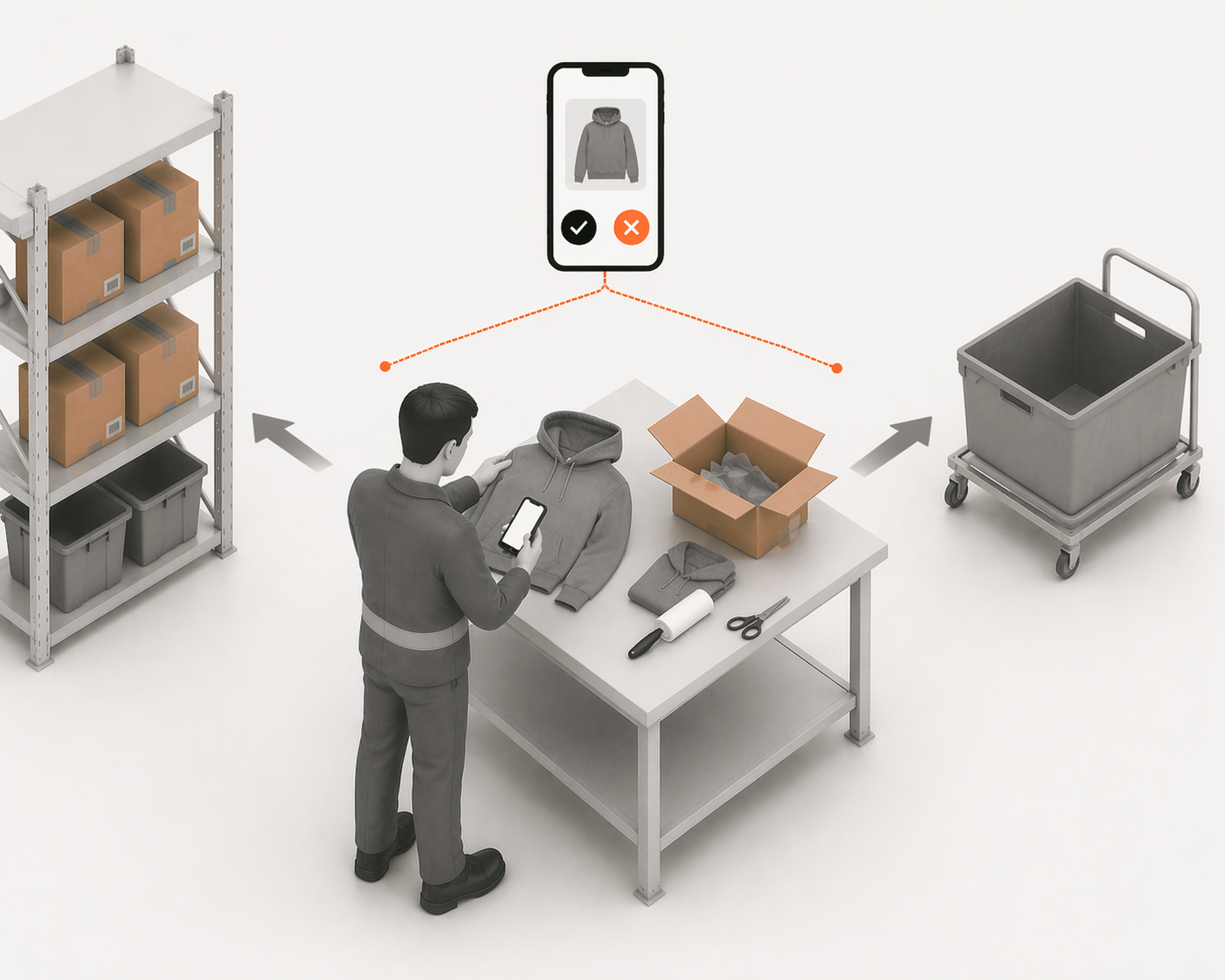
3. Damaged Stock Removed Without Adjustment
When a unit is damaged and removed from sellable stock — either during picking, receiving, or storage — it needs a corresponding Shopify inventory decrement. This step is consistently missed because damaged stock removal feels like a physical task, not a system task.
Fix: Create a "damaged stock" process that includes a mandatory Shopify adjustment step. Keep a physical damaged goods bin and process all adjustments at a set time each day — do not leave them to accumulate.
4. Receiving Discrepancies Not Reconciled
When a supplier delivers 94 units against a PO for 100, the natural response is to receive everything and chase the supplier for the shortfall. But if Shopify gets updated for 100 (the PO quantity) rather than 94 (the actual received quantity), 6 phantom units enter the system. Multiply this across dozens of deliveries and the drift compounds quickly.
Fix: Always receive against actual scan count, not PO quantity. Update Shopify for what arrived, not what was ordered. The discrepancy becomes a supplier performance issue to resolve separately — it should never inflate your Shopify inventory count.
5. App Sync Conflicts
Covered in detail in our inventory sync article — when multiple apps have inventory write permissions, they can overwrite each other's correct counts with stale data. This creates drift that is particularly hard to diagnose because it appears random.
Fix: One authoritative inventory writer. All other apps read-only.
How to Perform a Drift Reconciliation
A drift reconciliation resets your baseline. It does not prevent future drift — it gives you an accurate starting point from which to measure and manage.
Step 1 — Export your current Shopify inventory. Go to Products → Export → select "Inventory" to get a CSV of every SKU and its current Shopify count.
Step 2 — Perform a full physical count. Count every SKU in your warehouse. Use a consistent method — count sheets, scanner, or a counting app. Count twice for high-value or high-velocity SKUs.
Step 3 — Reconcile the two. Compare the physical count against the Shopify export line by line. Every discrepancy is a drift event. For significant discrepancies, investigate the cause before adjusting — understanding why the drift happened prevents recurrence.
Step 4 — Update Shopify. Use Shopify's inventory adjustment tool to bring all counts into alignment with the physical reality. Add adjustment notes explaining each change.
Step 5 — Implement the root cause fixes. A reconciliation without fixing the underlying causes is temporary. Within a month, drift will return to similar levels unless the processes that created it are changed.
The Permanent Fix — Real-Time Scan-Based Inventory
The root cause of all five drift sources above is the same: a gap between when a physical stock movement happens and when Shopify learns about it. Returns, pick errors, damaged stock, receiving discrepancies — all of these create drift because Shopify is updated after the fact, manually, and inconsistently.
The permanent solution is closing that gap entirely. When every physical movement — pick, pack, receive, stow, return, adjustment — triggers an immediate Shopify update via a scan, there is no window for unrecorded movements to accumulate. The gap between physical reality and Shopify never opens.
At that point, the problem has moved into warehouse management: the receiving, stowing, picking, returns, and adjustment work Shopify does not control directly.
This is the architecture LaSyncro is built around. Every warehouse scan is a real-time Shopify inventory event. Returns are restocked at the point of scan, not at the end of a shift. Deliveries are received unit by unit against the PO, with any discrepancy recorded immediately. Pick errors trigger an instant correction. The result is a Shopify inventory count that reflects physical reality at all times — not an approximation from this morning's manual adjustment.
Inventory drift is not inevitable. It is a process problem with a structural solution.
LaSyncro eliminates inventory drift by recording every warehouse movement in real time.
Start free